Home  /  Tutorial

Member Tutorial Centre

Step-by-step guides for everything you need: buying products, paying, tracking your parcel, topping up your wallet, withdrawing to your bank, and growing your affiliate network.

9 guides 37 steps With screenshots
  1. 1
    Open the shop and browse products

    Click Shop in the top menu, or open the product list directly. You can filter by category and use the search box to find a specific item.

    Open Shop
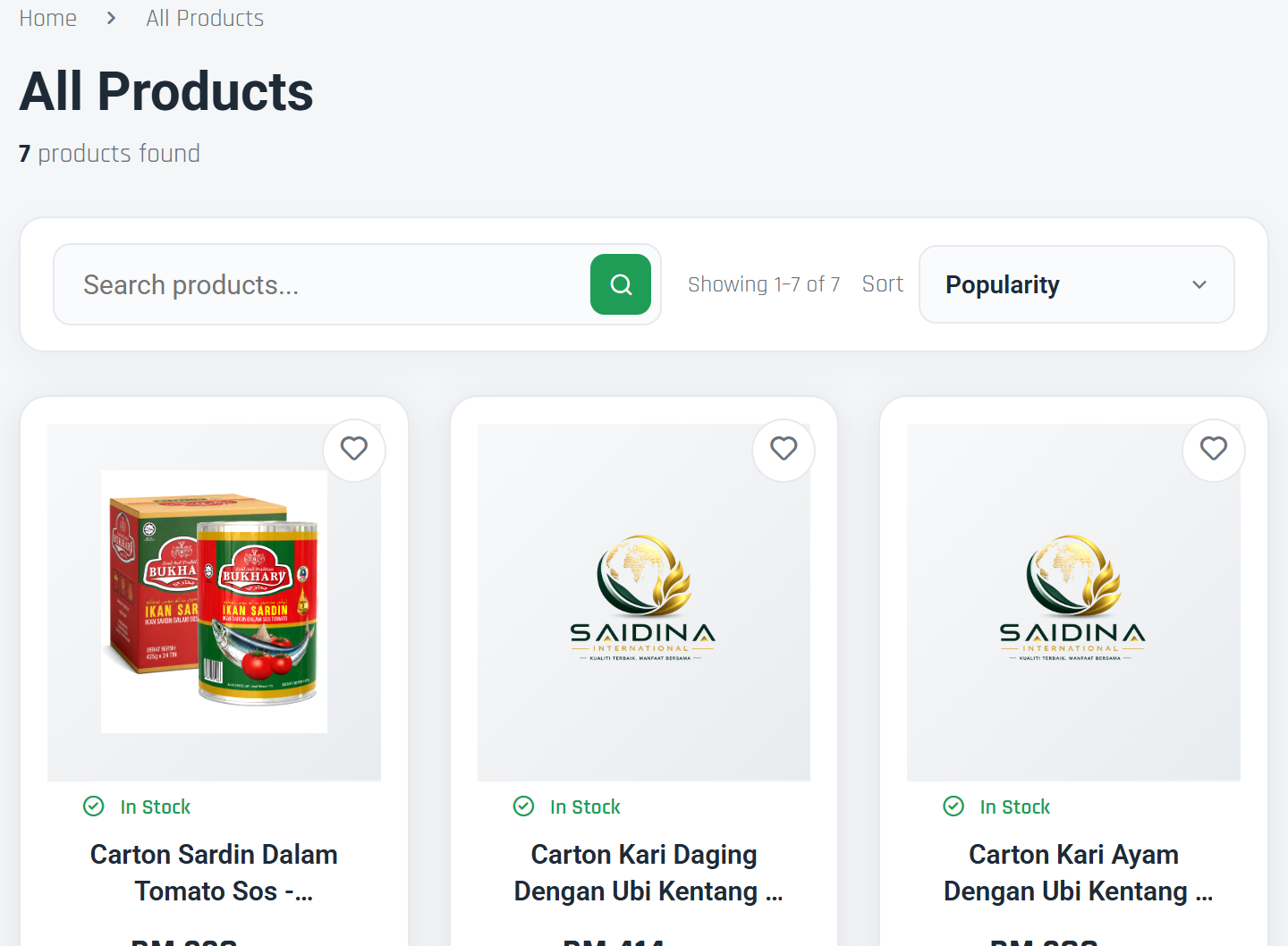
    Product listing page
    Product listing page · click to zoom
  2. 2
    Open the product and choose quantity

    Click any product to view its details, price, and stock. Set the quantity you want, then click Add to Cart.
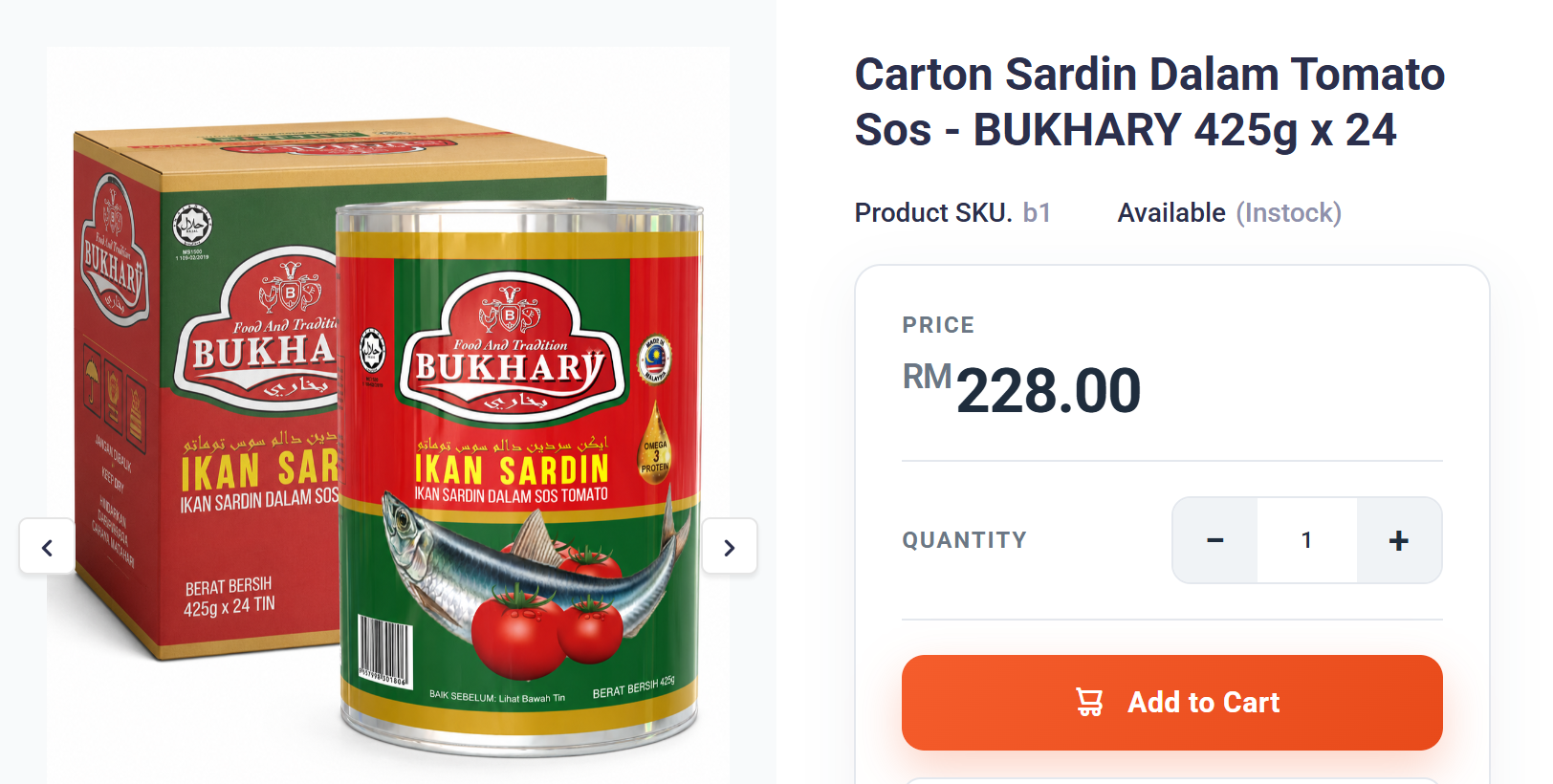
    Product detail page with Add to Cart
    Product detail page with Add to Cart · click to zoom
  3. 3
    Review your cart

    Open the cart icon at the top right. Check the items, quantity, and total. You can still change quantity or remove items here.

    Shopping cart summary
    Screenshot coming soon. Follow the written steps above — they are complete on their own.
  4. 4
    Fill in delivery details at checkout

    Click Checkout. Confirm your name, phone number, and full delivery address. Save your address in My Address first so it fills automatically next time.

    Go to Checkout
    Checkout page — delivery details
    Screenshot coming soon. Follow the written steps above — they are complete on their own.
  5. 5
    Choose a payment method and pay

    Pick Wallet (instant deduction from your balance) or ToyyibPay (FPX online banking / credit & debit card). If you choose ToyyibPay you will be redirected to the secure payment page.

    Payment method selection
    Screenshot coming soon. Follow the written steps above — they are complete on their own.
  6. 6
    Order confirmed

    After a successful payment your order appears in My Orders with the status Paid. You can print the receipt anytime.

    View My Orders
    Order created in My Orders
    Screenshot coming soon. Follow the written steps above — they are complete on their own.
Good to know
  • Add a delivery address in My Address before your first order to speed up checkout.
  • Buying at least 1 product unlocks your Referral Code, Sponsor Link, and the 4-level member tree.
  • Promo codes are entered at checkout, before you pick a payment method.
  1. 1
    Open My Orders

    Go to Dashboard → My Orders. Every order shows a status tracker: Placed → Confirmed → Shipped → Delivered.

    Open My Orders
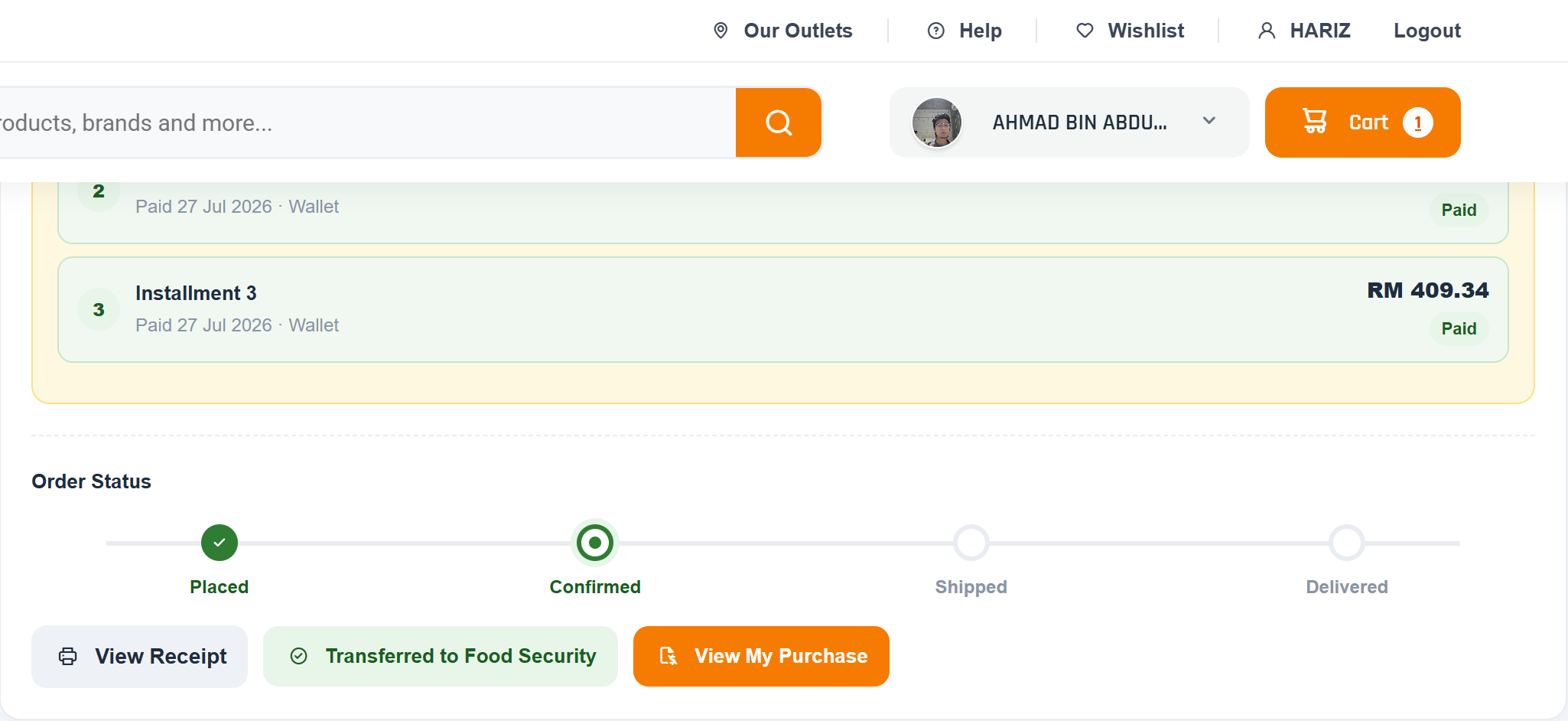
    My Orders list with status tracker
    My Orders list with status tracker · click to zoom
  2. 2
    Check the courier and tracking number

    Once our team ships your parcel, the courier name and tracking number appear on the order. Click View Tracking to open the courier website in a new tab.

    Shipping details with the View Tracking button
    Screenshot coming soon. Follow the written steps above — they are complete on their own.
  3. 3
    Press the Delivered button when your parcel arrives

    On the Delivered step, click the green Delivered button to confirm you received your order.

    Delivered confirmation button
    Screenshot coming soon. Follow the written steps above — they are complete on their own.
  4. 4
    Rate, give feedback, and upload a photo

    Choose a star rating (1–5), write optional feedback, and optionally take or upload a photo of the parcel. Then click Confirm Delivered.

    Delivery confirmation form — rating, feedback, photo
    Screenshot coming soon. Follow the written steps above — they are complete on their own.
  5. 5
    Receive 10 free reward points

    After confirming, 10 reward points are added to your account automatically. Points are awarded once per order.

    Success message with reward points
    Screenshot coming soon. Follow the written steps above — they are complete on their own.
Good to know
  • The Delivered button only appears after the order has been shipped (tracking number added).
  • Photo upload accepts JPG, PNG, or WEBP up to 5 MB.
  • Check your points balance anytime on the Dashboard or in My Rewards.
  1. 1
    Open My Wallet

    Go to Dashboard → My Wallet. Your current balance is shown at the top.

    Open My Wallet
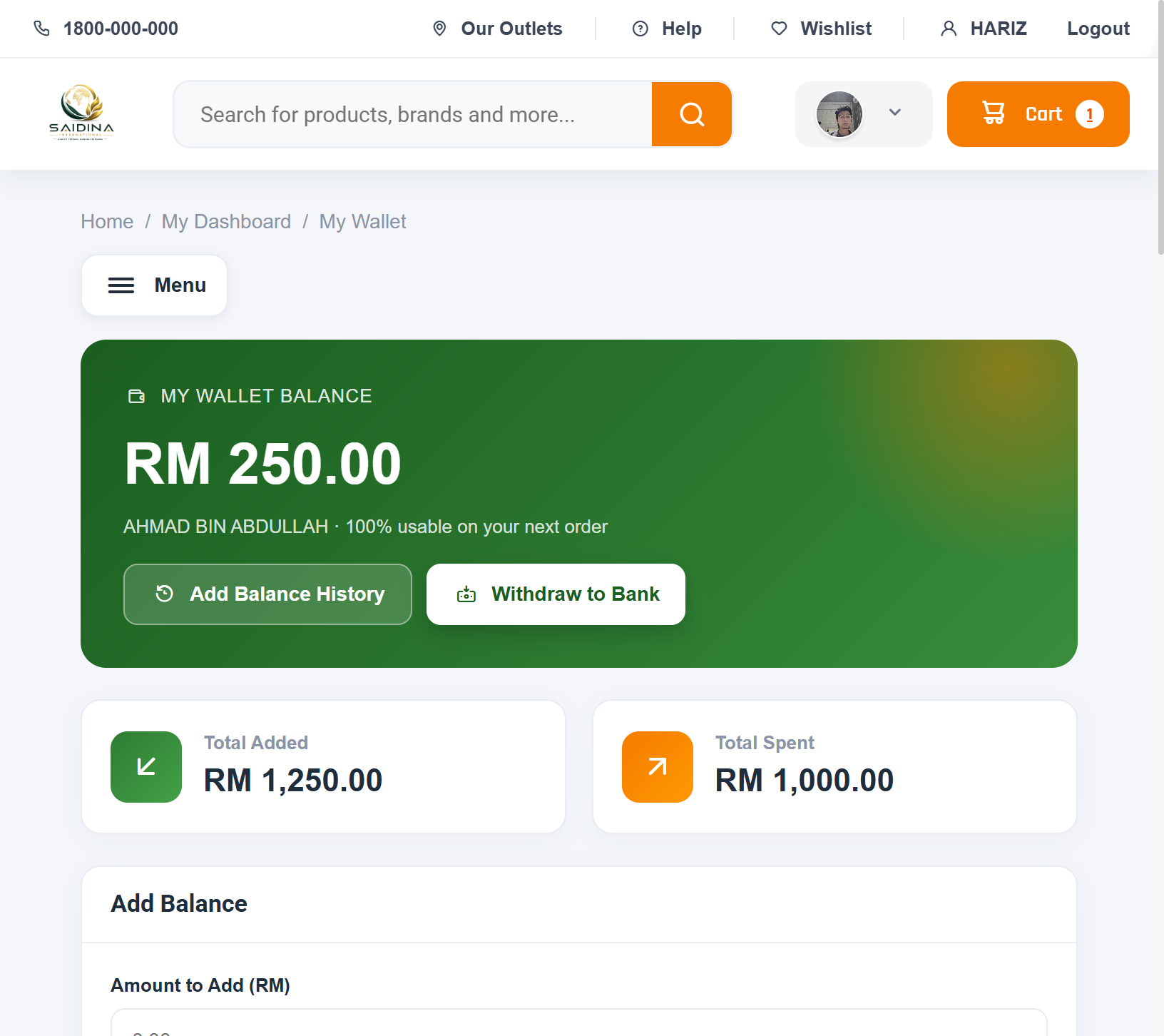
    My Wallet balance overview
    My Wallet balance overview · click to zoom
  2. 2
    Enter the top-up amount

    Type the amount you want to add, or tap one of the quick amount buttons.
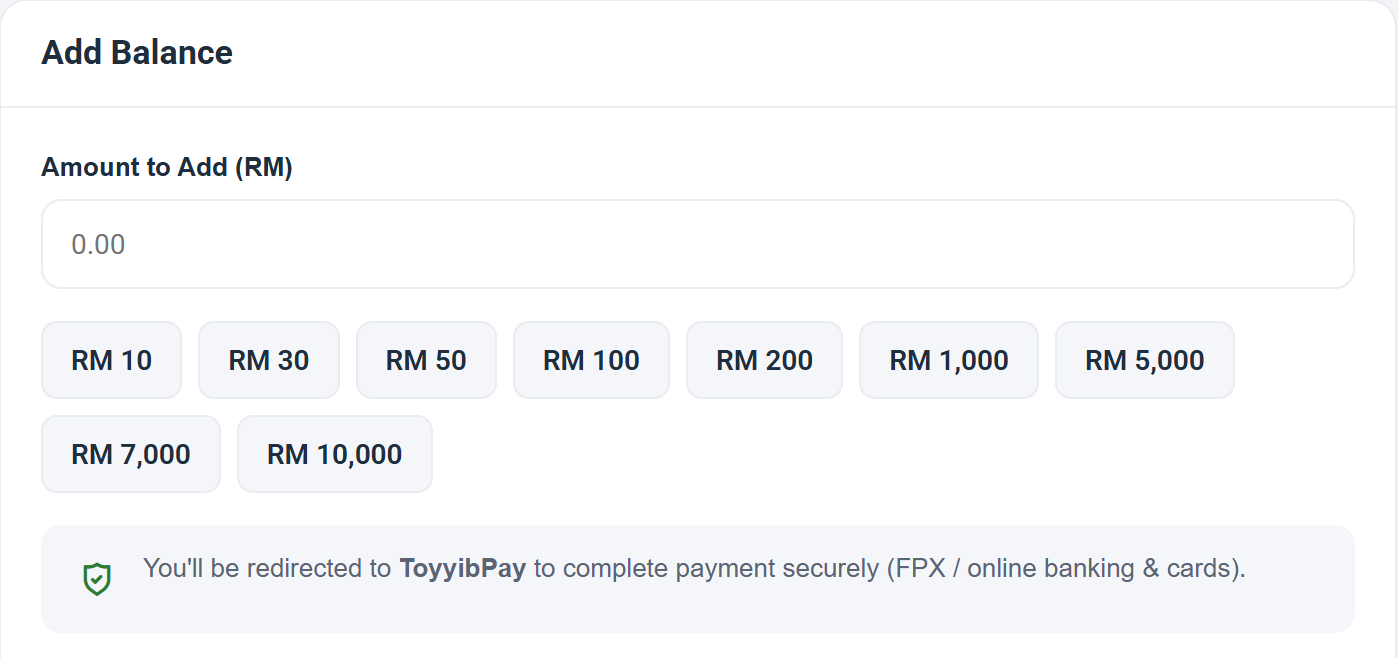
    Top-up amount and quick buttons
    Top-up amount and quick buttons · click to zoom
  3. 3
    Pay via ToyyibPay

    Click Top Up via ToyyibPay. You will be redirected to the secure gateway where you can pay with FPX online banking or a credit/debit card.

    ToyyibPay payment gateway
    Screenshot coming soon. Follow the written steps above — they are complete on their own.
  4. 4
    Balance updated automatically

    Once payment succeeds you return to the wallet page and your balance updates. Every top-up is listed under Add Balance History as SUCCESS, PENDING, or FAILED.

    Add Balance History
    Screenshot coming soon. Follow the written steps above — they are complete on their own.
Good to know
  • If a top-up shows PENDING, wait a moment and refresh — the gateway may still be confirming.
  • A FAILED top-up is never charged to your wallet. You can safely try again.
  1. 1
    Open the Withdraw page

    Go to Dashboard → My Wallet and click Withdraw. Your available balance and the minimum withdrawal amount are shown here.

    Open Withdraw
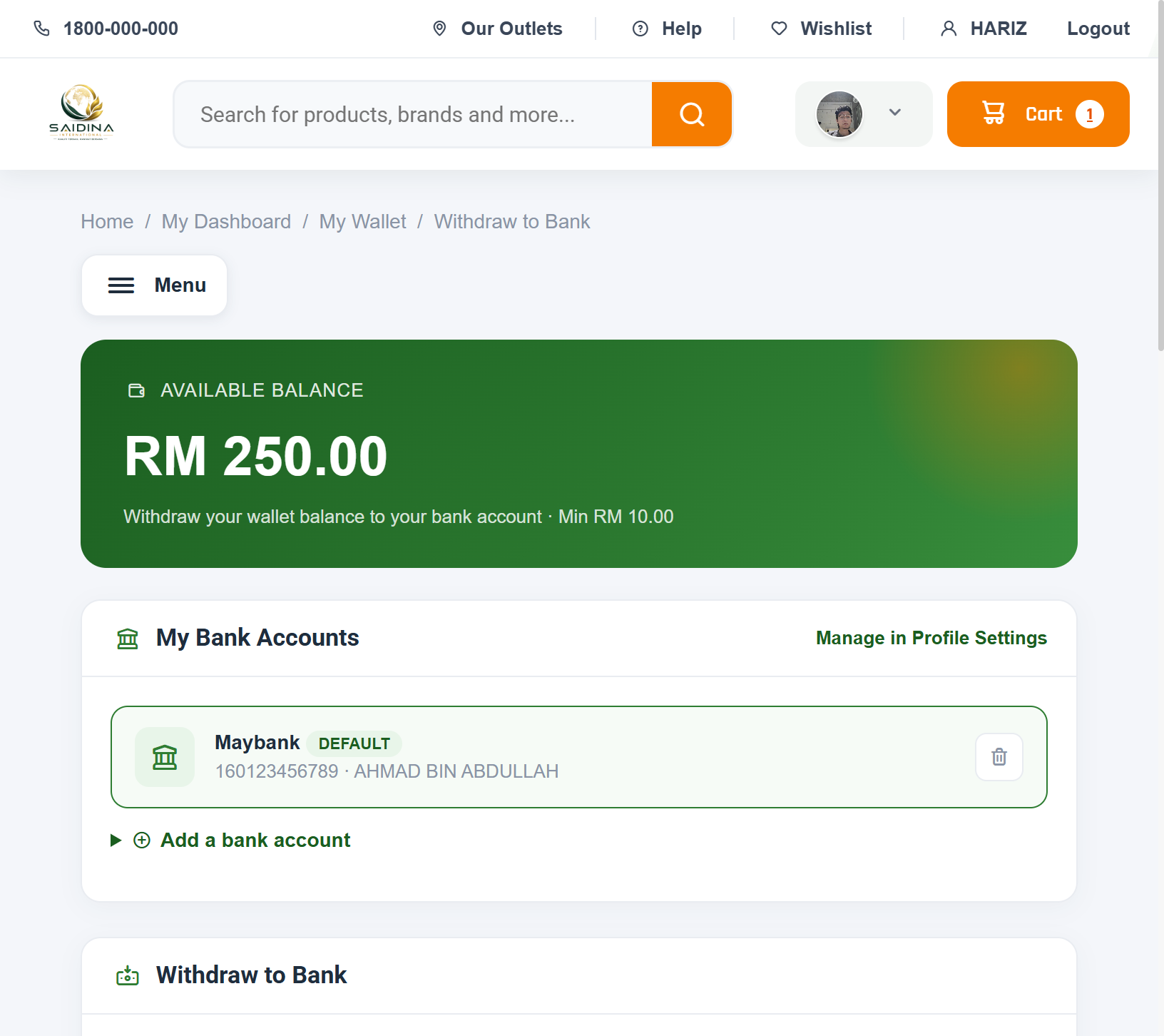
    Withdraw page overview
    Withdraw page overview · click to zoom
  2. 2
    Add your bank account (first time only)

    Fill in Bank Name, Account Number, and Account Holder Name, then save. The name must match your bank record exactly, otherwise the transfer will fail.
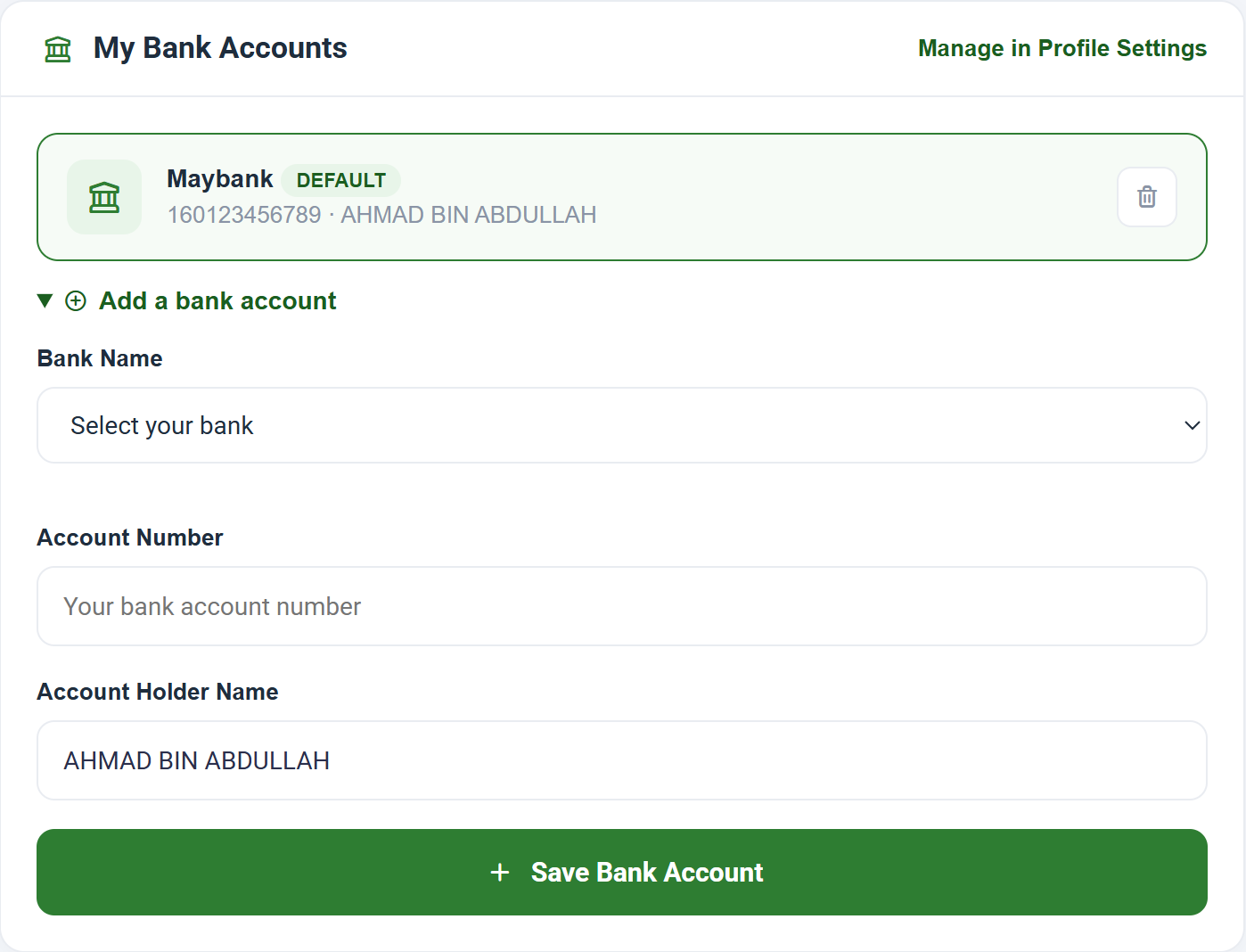
    Add bank account form
    Add bank account form · click to zoom
  3. 3
    Request the withdrawal

    Select the saved bank account, enter the amount (minimum RM 10.00), then click Request Withdrawal. The amount is held from your wallet immediately.
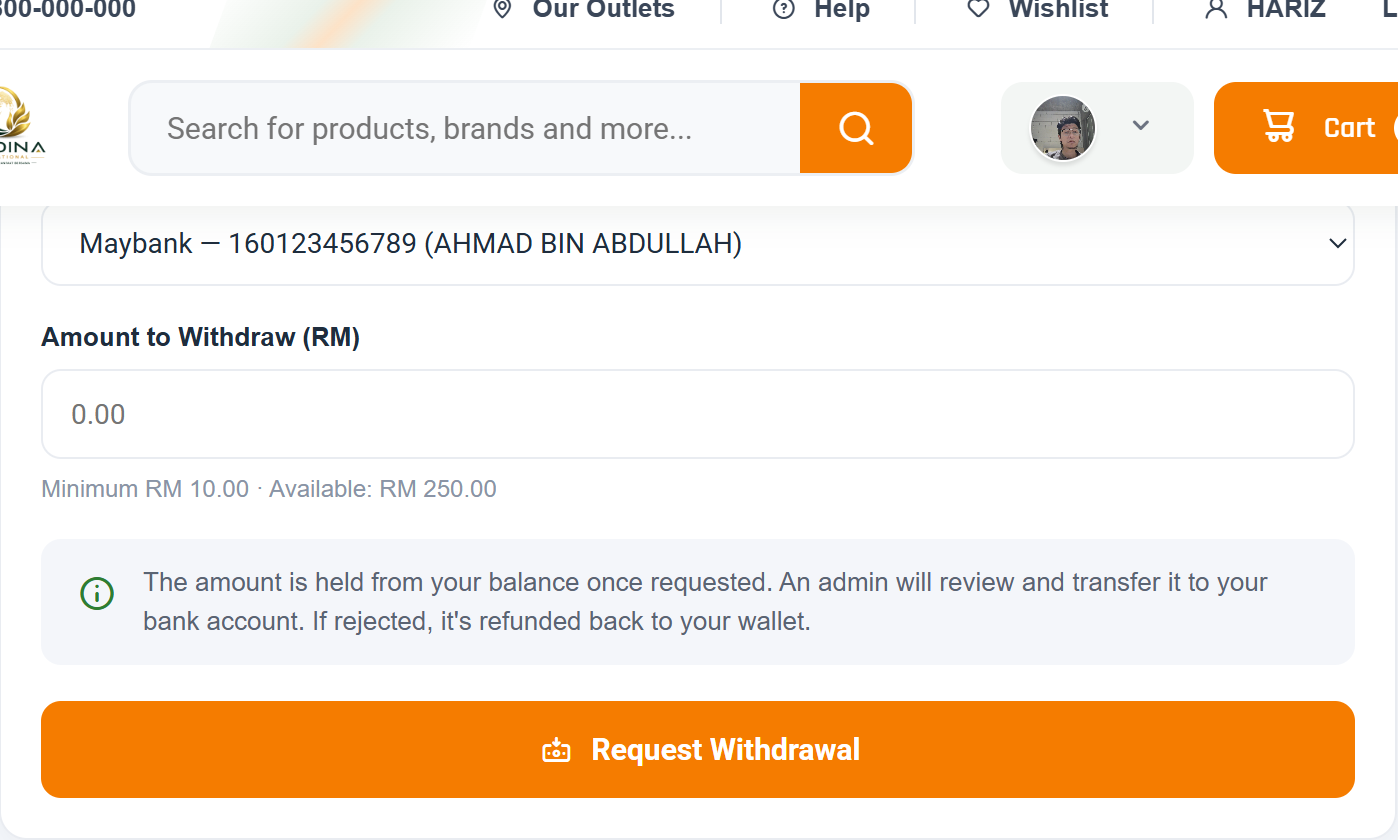
    Withdrawal request form
    Withdrawal request form · click to zoom
  4. 4
    Wait for admin approval

    Your request starts as Pending. Once our finance team transfers the money the status becomes Paid. If a request is rejected, the amount is returned to your wallet.
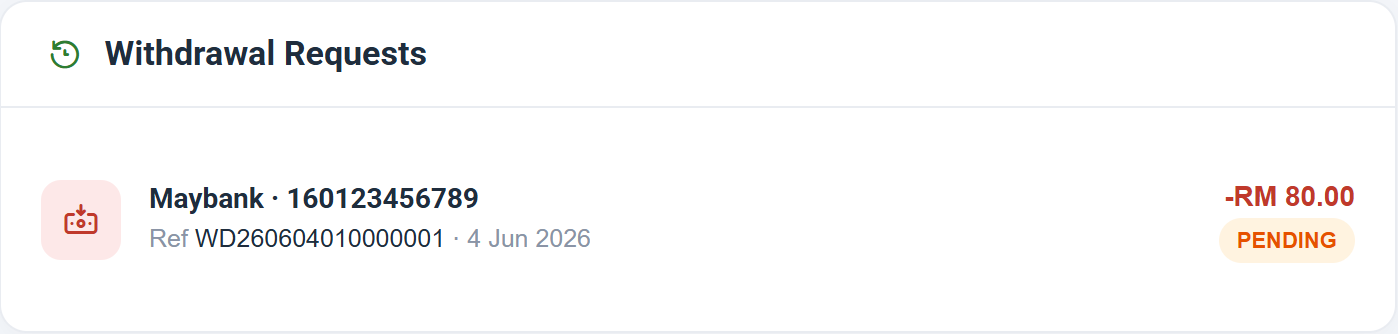
    Withdrawal history and status
    Withdrawal history and status · click to zoom
Good to know
  • Minimum withdrawal is RM 10.00.
  • You can save more than one bank account and set a default.
  • Double-check your account number — a wrong number delays the transfer.
  1. 1
    Buy at least 1 product to unlock

    The referral program activates after your first successful paid order. Before that, the Referral Code, Sponsor Link, and Marketing Tree stay locked.

    Shop Now
    Referral locked state on the Dashboard
    Screenshot coming soon. Follow the written steps above — they are complete on their own.
  2. 2
    Copy your Referral Code and Sponsor Link

    After unlocking, your Referral Code and Sponsor Link appear on the Dashboard banner and in the Marketing Dashboard. Click the copy icon to copy either one.

    Marketing Dashboard
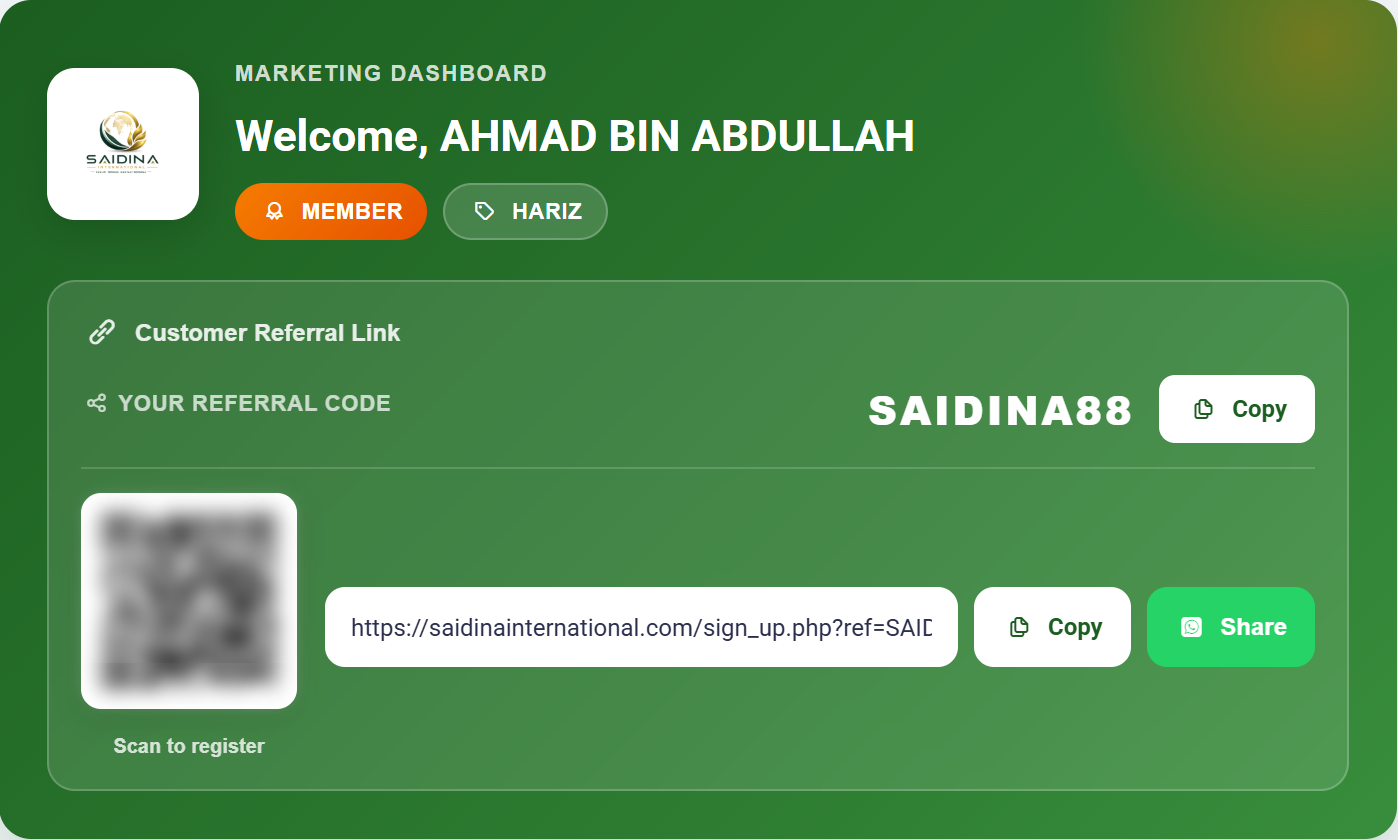
    Referral Code and Sponsor Link
    Referral Code and Sponsor Link · click to zoom
  3. 3
    Share the link or QR code

    Share your Sponsor Link on WhatsApp or social media, or let people scan your QR code. Anyone who registers through it is placed under you automatically.

    Sponsor link with QR code and WhatsApp share
    Screenshot coming soon. Follow the written steps above — they are complete on their own.
  4. 4
    View your member tree

    Open Marketing Tree Diagram to see your downline across 4 levels. You can zoom in and out and drag to move around the chart.

    Open Marketing Tree
    Marketing Tree Diagram
    Screenshot coming soon. Follow the written steps above — they are complete on their own.
Good to know
  • One member has one sponsor only — the sponsor cannot be changed after registration.
  • Your downline must complete a qualifying purchase before commission is generated.
  1. 1
    Understand the 4 levels

    Level 1 = members who register directly from your Sponsor Link. Level 2 = members registered by your Level 1. Level 3 and Level 4 follow the same pattern down the tree.
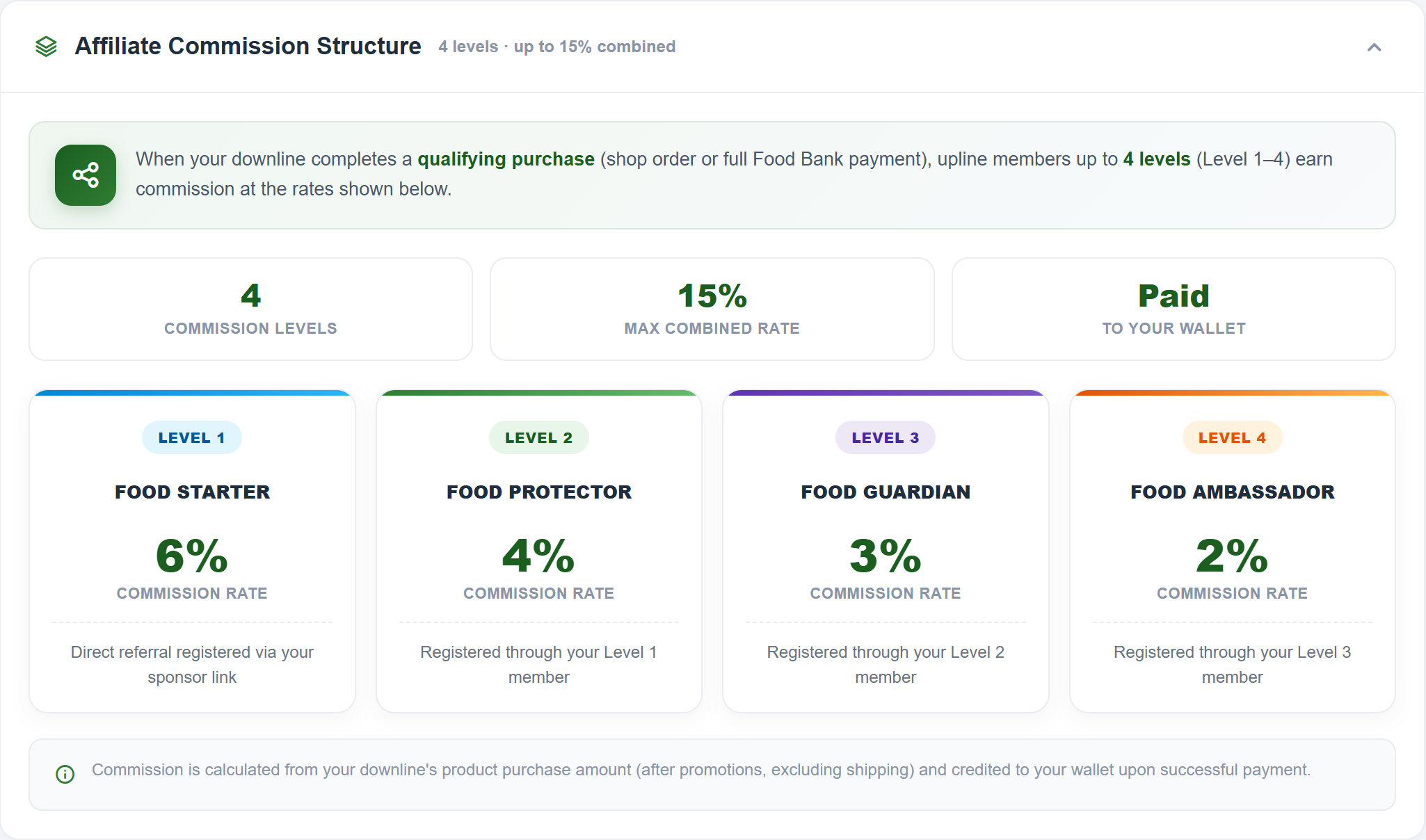
    Affiliate Commission Structure card
    Affiliate Commission Structure card · click to zoom
  2. 2
    Check the commission rates

    Current rates: Level 1 = 6% · Level 2 = 4% · Level 3 = 3% · Level 4 = 2%. The calculation base is the product total after promo discounts — shipping is excluded.

    Commission rate per level
    Screenshot coming soon. Follow the written steps above — they are complete on their own.
  3. 3
    Commission is credited automatically

    When a downline completes a qualifying purchase, commission is generated for every upline up to 4 levels and credited to your wallet.

    Open My Commission
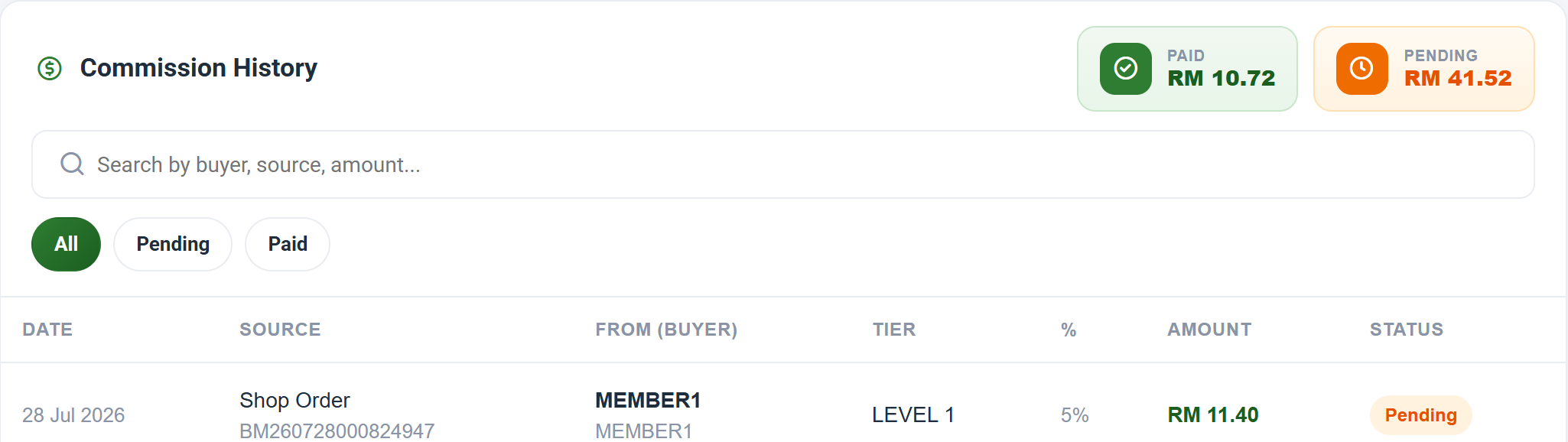
    My Commission report
    My Commission report · click to zoom
  4. 4
    Withdraw your earnings

    Commission lands in your wallet balance. Use the Withdraw page to transfer it to your bank account.

    Withdraw Now
    Withdraw commission to bank
    Screenshot coming soon. Follow the written steps above — they are complete on their own.
Good to know
  • Cancelled or refunded orders have their commission reversed.
  • All members earn the same rates — there are no dealer or stokis tiers.
  1. 1
    Check your points balance

    Your total reward points appear on the Dashboard stat cards and in My Rewards.

    Open My Rewards
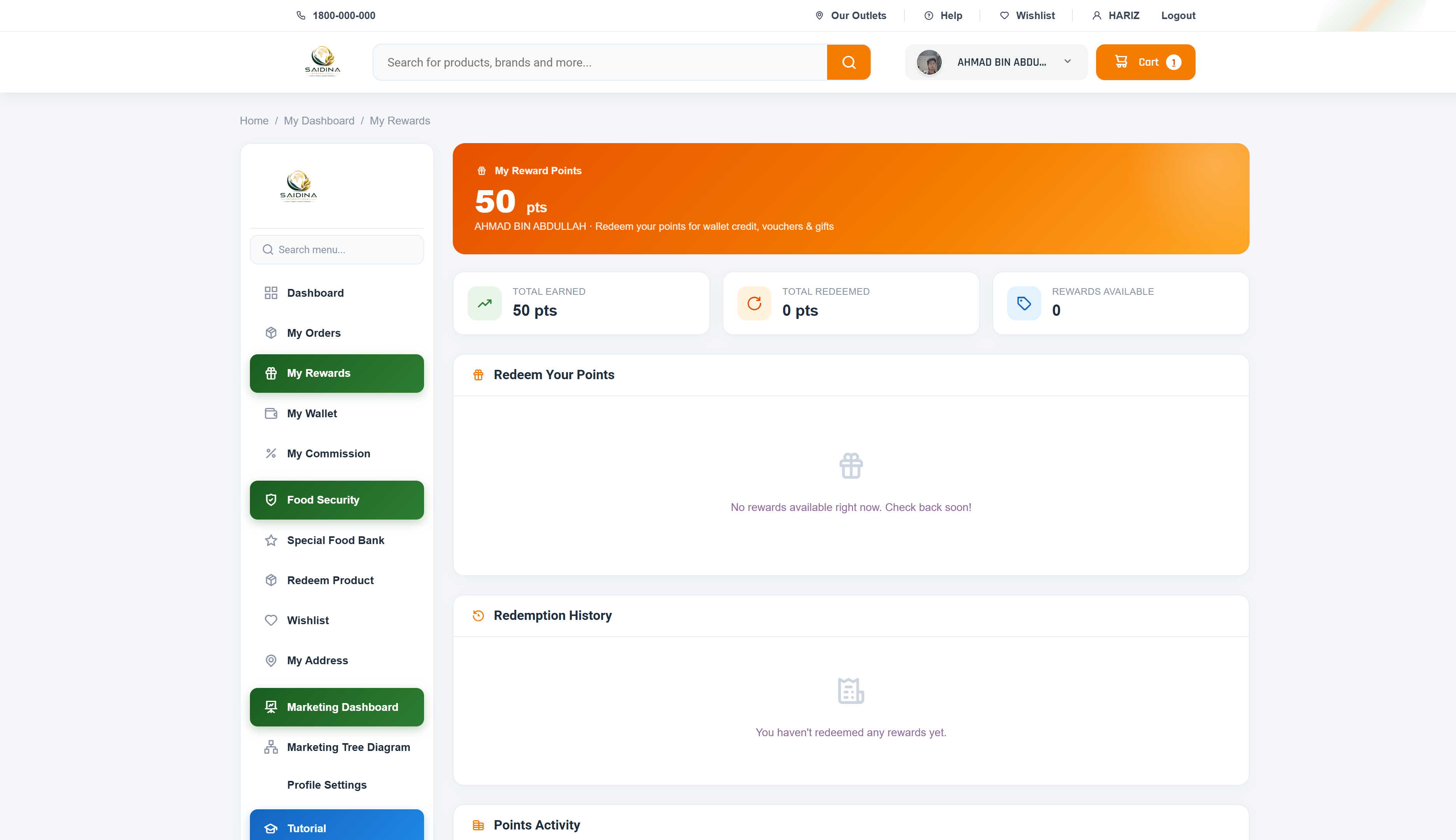
    Reward points balance
    Reward points balance · click to zoom
  2. 2
    Earn more points

    You earn points from qualifying purchases and 10 free points every time you confirm delivery of an order.

    Points history
    Screenshot coming soon. Follow the written steps above — they are complete on their own.
  3. 3
    Redeem a reward

    Open My Rewards, pick a reward you can afford, and click redeem. The points are deducted immediately and our team processes your reward.

    Redeem a reward
    Screenshot coming soon. Follow the written steps above — they are complete on their own.
Good to know
  • Points have no expiry unless stated in a specific promotion.
  • Redemption cannot be reversed once confirmed.
  1. 1
    Update your profile

    Go to Profile Settings to change your name, email, and phone number. Click your avatar on the Dashboard to upload a profile photo.

    Open Profile Settings
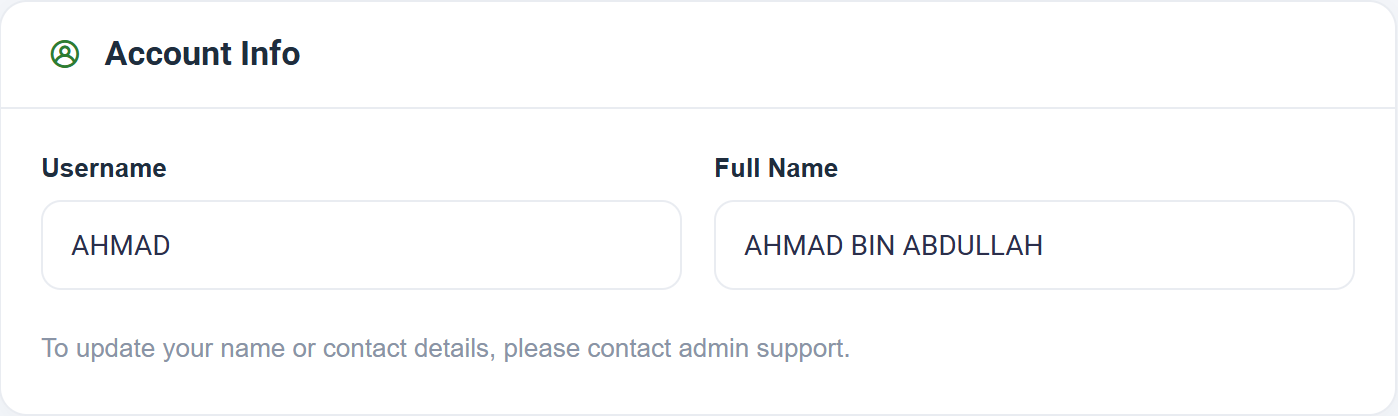
    Profile Settings page
    Profile Settings page · click to zoom
  2. 2
    Change your password

    In the Change Password section, enter your current password, then the new password twice. Minimum 6 characters. Use the eye icon to check what you typed.
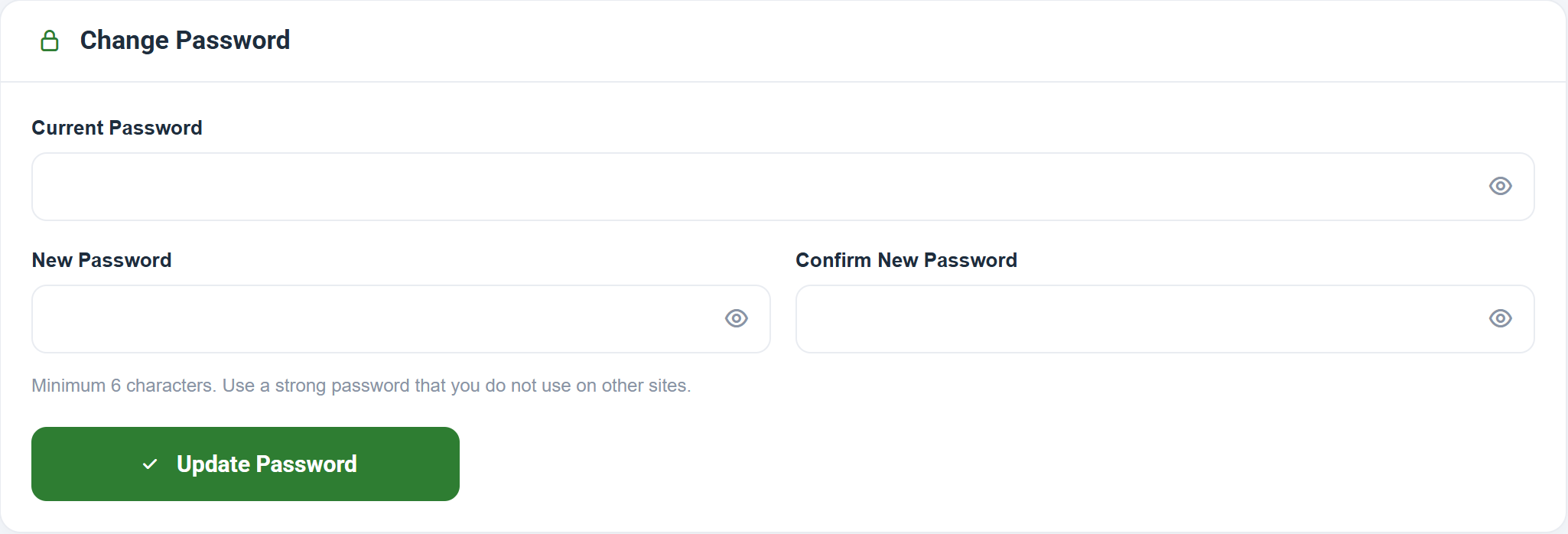
    Change Password section
    Change Password section · click to zoom
  3. 3
    Manage delivery addresses

    Open My Address to add, edit, or delete addresses and set a default. The default address fills in automatically at checkout.

    Open My Address
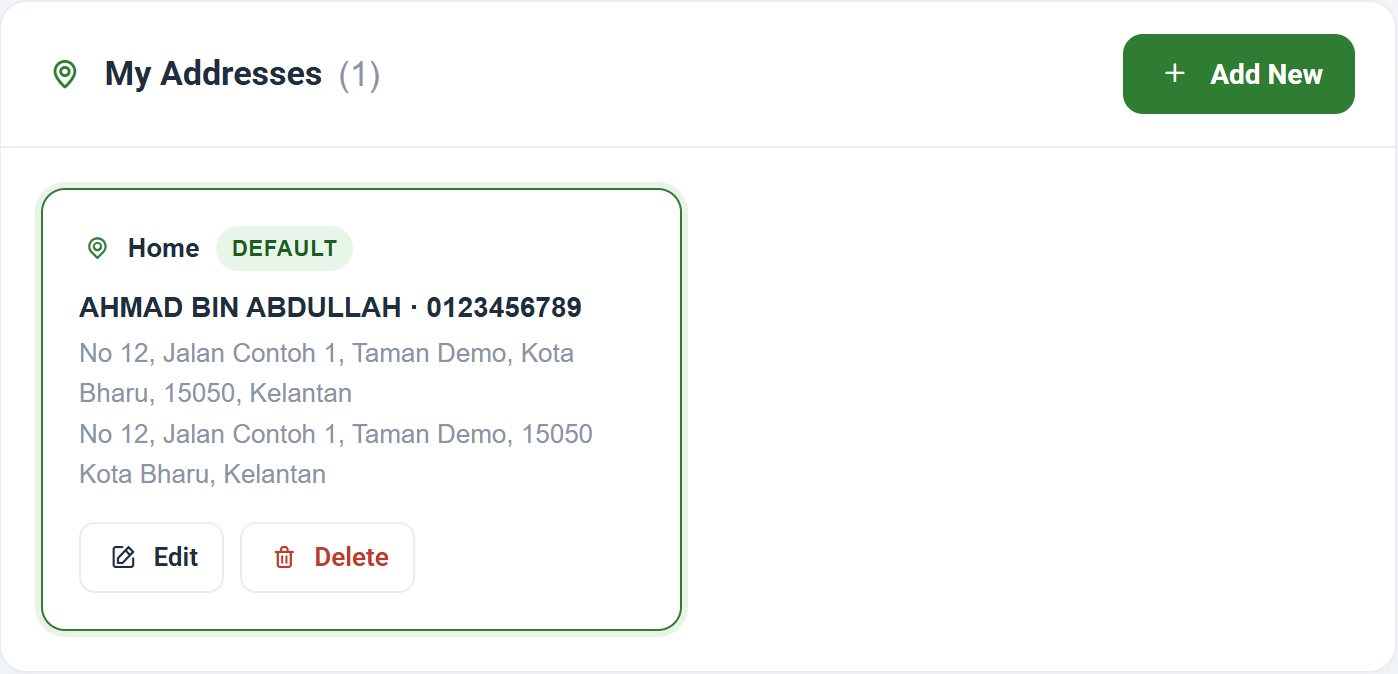
    My Address list
    My Address list · click to zoom
Good to know
  • Never share your password. Our team will never ask for it.
  • Keep your phone number correct — couriers use it for delivery.
  1. 1
    Open the Food Security page

    Go to Dashboard → Food Security to view the available packages, purchase amount per carton, and the tenure.

    Open Food Security
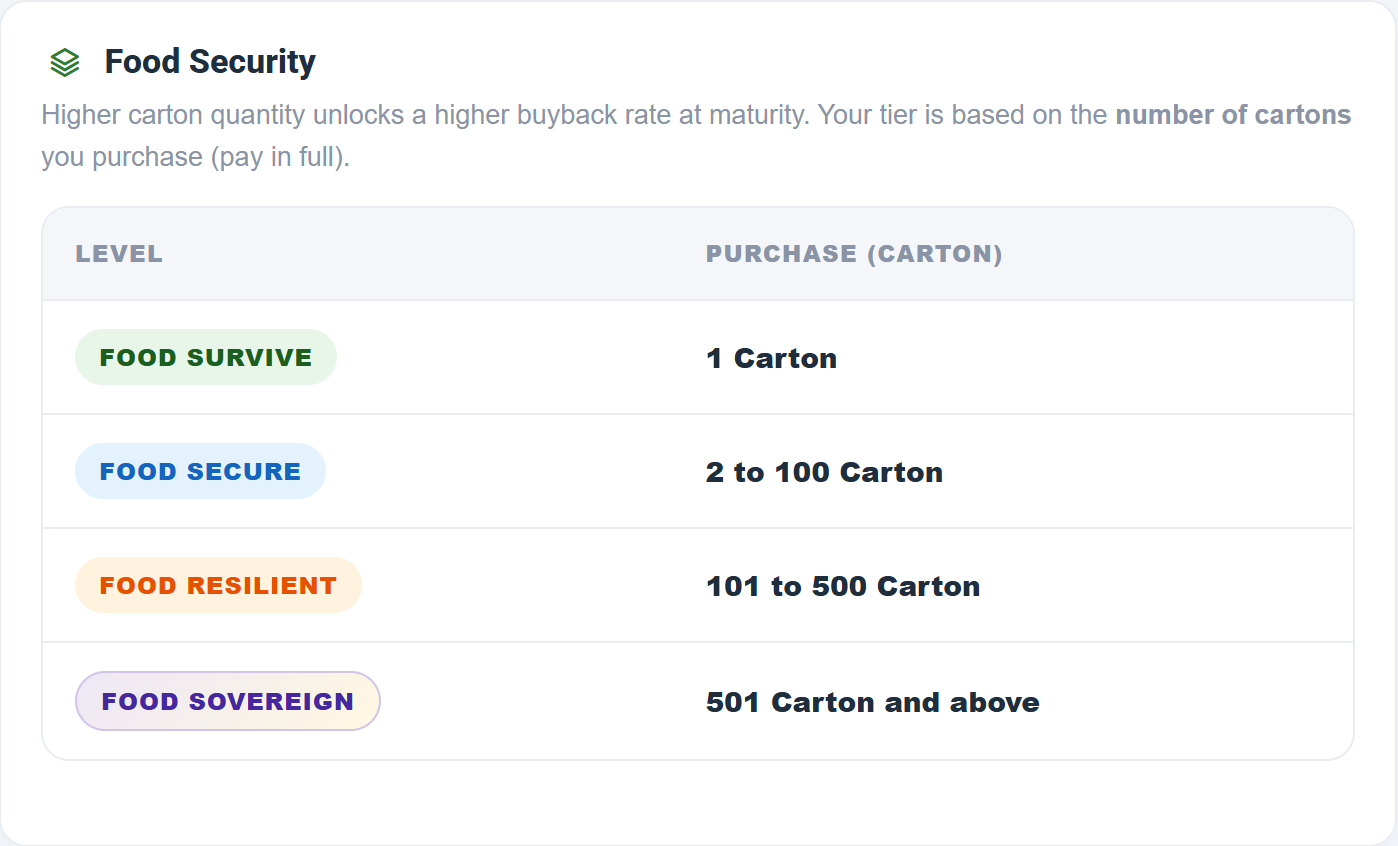
    Food Security packages
    Food Security packages · click to zoom
  2. 2
    Choose a package and pay

    Select the number of cartons, review the total, and pay with your Wallet or ToyyibPay.

    Food Security checkout
    Screenshot coming soon. Follow the written steps above — they are complete on their own.
  3. 3
    Convert an existing order (optional)

    Eligible orders in My Orders show a Convert to Food Security button. This is only available before the order is shipped.

    Convert order to Food Security
    Screenshot coming soon. Follow the written steps above — they are complete on their own.
  4. 4
    Track maturity and buyback

    Your active purchases list the maturity date and buyback amount. After maturity our team processes the buyback payout.

    Purchase list with maturity date
    Screenshot coming soon. Follow the written steps above — they are complete on their own.
Good to know
  • Only registered Food Security products are eligible.
  • Conversion is blocked once an order has been shipped.

No tutorial found

Try a different keyword, for example "withdraw", "wallet", or "referral".

Still need help?

Our team is happy to walk you through anything that is not covered here.

Contact Support

Saidina International Support

We're here to help
Please sign in to chat with our support team.
Sign In